Keep listings, pipeline, outreach, and content creation in one place built to feel polished, steady, and easy to run every day.
Invalid credentials. Please try again.
Security check required before signing in.
Create account·Forgot password?
Inside Vendora
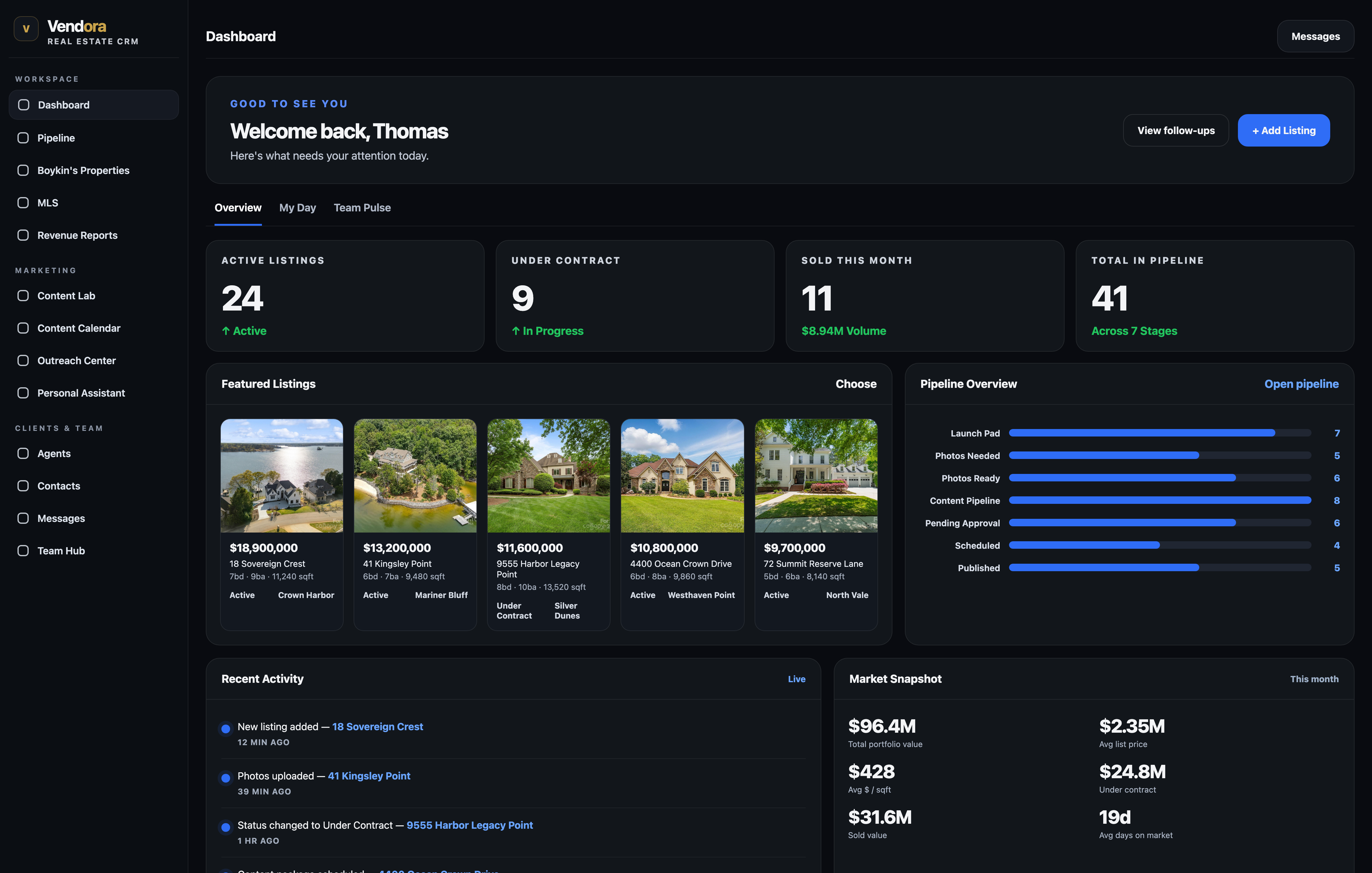
A sharper look at the workspace your team signs into every day.
Featured listings, pipeline activity, and real operational detail in one screen, with the AI working inside the flow instead of dressing up the whole page.
Create your Vendora account
Your details are sent to the Vendora administrator for setup.
Required info
Account type *
Enter the exact brokerage name. Your request is sent to that brokerage's admin for approval.
About you (optional)
Vendora is not currently available for California users or California brokerage activity.
Security check required before creating an account.
Reset your password
We'll email you a reset link.
Security check required before sending the reset link.
Set a new password
Your reset link expires 30 minutes after it was sent.
One-click access to your MLS systems. Search any state, pin the ones you use, and open them directly.
📌 Pinned
All States
Agent Roster
June 2026
Upcoming
This Month
By Platform
Setup required — Add your Claude or OpenAI API key in Settings → Integrations to unlock live content generation. Until then, Vendora shows sample previews so you can still explore the workflow.
Content Builder
Algorithm-optimized. When you pick a type — say a Just Listed post — Vendora scans current trending real-estate hashtags, high-intent SEO keywords, and platform-specific engagement patterns, then weaves them into your caption so your posts surface to the right local buyers and pick up organic reach instead of getting buried.
Property Photos
Select a property above to auto-fetch listing photos
Branded Graphic
Generate a branded, shareable image for this property
🎨 Use My Canva Templates
Fill your real Canva brand templates with this listing's photos & details
Generated Content
Caption
Recent Generations
Date
Type
Property
Preview
Actions
No generations yet
Vendora Video Listing Creator. Show what is possible first with a finished sample tour, then let the user move into the builder when they want to test the workflow.
Vendora Studio: Not Connected
Vendora Video Listing Creator
Turn listing photos into a polished teaser agents can text, post, and attach to listing pages. This tab now leads with the sample so the value is obvious before someone spends time picking an address and arranging photos.
Currently in demo preview. Live rendering is not active on localhost. Use View Sample to see the current walkthrough example, then use the builder below whenever you want to test the flow.
Add a second lock on your account: signing in also requires a 6-digit code from an authenticator app (Google Authenticator, Authy, 1Password, Apple Passwords). Even someone who learns your password cannot get in without your phone.
Appearance
Choose how Vendora looks. Your choice is saved on this device.
Sidebar tabs
Pick which tabs appear in your sidebar. Dashboard and Settings always stay.
Vendora Master Control
Platform Owner
Loading platform analytics…
Brokerage
Agents who requested to join your brokerage. Approve to give them access, or decline to reject the request.
Current Agents
Your brokerage join name
Share this exact name with your agents. When they pick “Join a brokerage” and enter it, their request lands here.
Terms of Service
Last updated: June 7, 2026
Please review the terms governing your use of Vendora. By using this platform you agree to these terms.
Commission Split
Revenue
The percentage your brokerage keeps from gross commission. Used across Revenue Reports, P&L, and the commission calculator.
% brokerage split
Account Details
Refer & Earn
Free time
Business Profile
Tell clients and your AI assistant about your business. This information is used to personalize content, listings, and outreach.
Agent Knowledge
Reference
Documents that have been read and built into your personalized agent's memory. Your agent uses these for voice, brand facts, and guardrails on every response and graphic.
Agent Knowledge Base
Reference
Upload documents your custom agent should reference on every answer — brand guides, scripts, listing presentations, market reports, brokerage policies. Add as many as you need; your agent reads them alongside its other knowledge. Plain text, Markdown, CSV, and JSON work best.
Click to upload or drag & drop
.txt, .md, .csv, .json — multiple files allowed
Notifications
Choose what Vendora alerts you about.
Your Connected Accounts
Your keys
These are your brokerage's own accounts. Add the keys here to power Meta Ads analytics in the Facebook Monitor and your Google reviews. Vendora's own AI/MLS keys are managed for you — you don't need to enter those.
📘 Facebook / Meta
Connect your Meta (Facebook/Instagram) Ads account to track ad analytics — spend, reach, and leads.
Meta Access Token
⭐ Google Business (Reviews)
Connect your Google Business Profile to pull and respond to your reviews.
Google API Key
Google Calendar
Connect Google Calendar to pull read-only events into Vendora's Content Calendar using your own Google OAuth client.
OAuth Client ID
In Google Cloud Console, create a Web application OAuth client, enable the Google Calendar API, and add http://localhost:8888 to Authorized JavaScript origins.
API Integrations
Admin
Connect optional third-party services. Keys are stored on this device and used to power their features. For production, set the matching environment variable on the server so keys never live in the browser.
Walkthrough Video
Not Connected
Powers Content Lab → Walkthrough Videos — turns listing photos into cinematic 3D tours.
Video API Key
Setup: Paste your video-generation API key here, or set it server-side in your Netlify environment variables so the key stays private and never lives in the browser.
Website Sync
Admin
Pull listings & photos straight from your brokerage website. Scan your listings page now, and turn on nightly auto-sync so new homes, photos, and sold updates flow in on their own.
Sync homes from your Home Search (MLS)
"Sync market area" pulls the homes across your service area — Fort Mill, Tega Cay, Lake Wylie, Rock Hill, Indian Land, Charlotte and Waterfront — with full photo galleries and details. The state buttons pull the entire NC / SC MLS (thousands of homes) and take a while.
Connected Platforms Overview
This panel shows the major services connected to Vendora. For Carolina and Content Lab, save either a Claude or OpenAI key in the AI Provider Key section below. Once that key is saved, the assistant can answer live and Content Lab can write live content.
eXp / BoldTrail
API Key: ••••••••4f2a
Connected
AI Assistant
Uses the brokerage's saved Claude or OpenAI key from the secure section below
Needs Key
Buffer
Social scheduling
Not Connected
Canva
Design templates & poster generation
Not Connected
Website Sync
Auto-import listings from your brokerage site
Not Configured
Walkthrough Videos
Cinematic listing tours (Content Lab)
Not Connected
🎨 Canva Templates (Live)
Admin
Fills your real Canva Brand Templates with a listing's photos & details and exports a finished graphic — true layer editing, not an overlay. Credentials stay on the server; the browser never holds your Canva secret.
Connection
Not Connected
Client ID
Client Secret
One-time setup:
At canva.com/developers, create a Connect app (Brand Template autofill needs a Canva Teams/Enterprise plan).
Paste the Client ID + Secret above, click Save, then Connect.
In Canva, give each Brand Template named fields — image fields for photos, text fields for address/price/beds/baths/sqft/agent.
Importing Listings
No API key needed
Vendora pulls listing data without any MLS API key. From your MLS, either:
Paste the detail report — open a listing's full display, copy the page, and use Active Listings → Import → "Paste MLS detail." Vendora reads the address, price, beds/baths, lot, taxes, HOA, appliances, interior features and remarks automatically.
Upload an export — a CSV, JSON, or a Matrix "w/photos" .zip (photos included) via Active Listings → Import.
Brokerage Branding
White-label
Your brokerage name and logo appear in the sidebar for your whole team — making Vendora feel like your platform.
Your logo goes on your profile picture (Profile & Account above), not the sidebar wordmark.
AI Provider Key
Admin · Secure
Use this once per brokerage to bring Carolina and Content Lab live. Paste either a Claude key or an OpenAI key, click Save securely, then go back to Carolina and start chatting. No browser storage, no copy-pasting the key into multiple screens.
Provider — use whichever you have
API Key
🔒 Your key is encrypted and stored on Vendora's server, scoped to your brokerage only. It never touches this browser's storage and is never shown again. It powers Content Lab, Carolina, and other live AI writing inside Vendora. Paste a Claude key (sk-ant-…) or an OpenAI key (sk-…) — Vendora works with either.
AI Helper Defaults
Helper
Set the default voice, audience, and brand details your AI Helper uses when writing posts, captions, and graphics. You can still override these on any individual piece.
Default Tone
Default Audience
Company Name
Agent Name
Company Phone
Company Website
Skyslope API
Skyslope API Key
Assign Contacts To Agent
User Accounts
Admin View
Data & Backup
Your Vendora data (listings, contacts, deals, expenses, agent setup, preferences, recycle bin) lives in this browser. Export a backup file you can keep safe or move to another device. Importing overwrites the current data, then reloads.
Deactivate Account
Deactivating signs you out and disables this login. Your data is preserved, but you won't be able to sign in until an administrator reactivates the account. To confirm, re-enter your username and password.
Recipient Lists
Contacts
0 selected
Quick Scenarios
My Templates
No custom templates yet.
Demo Mode — on localhost, sends are simulated. Once deployed to Netlify with a Resend API key, emails send for real.
Estimate your real take-home on a deal after split and fees.
🎨 Your Canva Templates
Pick a template — Vendora fills it with this listing
Create social media graphic
Property graphic
Formats
BPG Listing Templates
Pick an existing template. Vendora preserves it, fills its declared photo slots in your selected order, and adds editable listing text.
Or upload your own template
Upload any graphic (a Canva export, flyer, or design). Vendora reads its size and auto-detects the photo spots so you can drop in your listing photos, resize them, and add text.
Template Photo Slots
Drag a photo onto a slot in the preview, or tap to fill the next slot.
Resize photo in slot 1 — drag the photo to reposition, scroll on it (or use the slider) to make it bigger or smaller.
Zoom
Property Description
Caption size100%
Caption color
Selected text box
Size3.0%
Color
Listing Details — edit any field
Font Size Adjustment
100%
Banner color
Preview
Choose one or more formats and a style, then Generate.
Create Canva Graphic
Use your Canva templates for this listing
Select an agent to view templates
Connect to Canva
Authorize Vendora to access your Canva account
🎨 Canva OAuth
You will be redirected to Canva to authorize Vendora. This allows you to:
• Access your design templates
• Generate listing graphics
• Edit designs in your Canva account
Connect Facebook API
Enable monitoring of Facebook groups
Get your API key from Facebook Developers → Your App → Settings → Basic. Need a user access token with groups_read and pages_read_engagement permissions.
Setup Twilio SMS
Send SMS notifications to agents
Get these from your Twilio Console → Account Info. Agents will receive SMS notifications when relevant posts are detected.